The 5 best font identifier Chrome extensions
All of them will name a typeface. The useful question is whether they name the font that rendered, and whether they give you the weight, size and tracking that make it look the way it does.
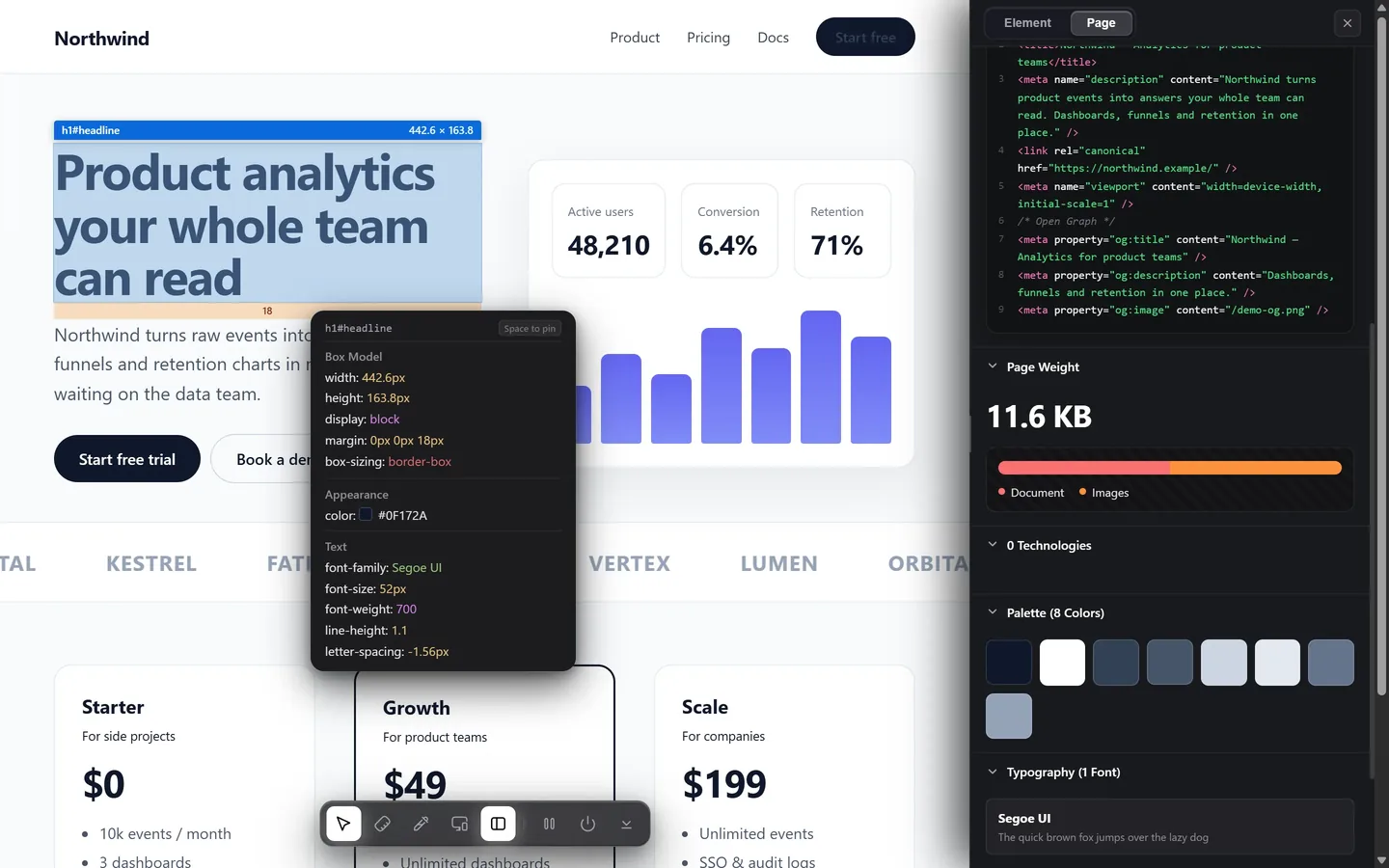
WhatFont is the simplest and the one most people already know. Fonts Ninja is the one that links you to where you can license the font. Design Toolkit is the one that gives you the rendered family plus the weight, size, line height and tracking together, and measures the font so a substitute can be matched to it.
The thing to check before you trust any of them
A page's CSS does not name a font. It names a stack — "Söhne", Helvetica, Arial, sans-serif — and the browser uses the first family it can load that covers the characters on screen. When a webfont fails, or a glyph is missing, what you are looking at is further down that list.
So an extension that reports font-family is telling you what the site asked for. One that reports the rendered font is telling you what you are looking at. When the two disagree, the second is the answer.
| Tool | Rendered font | Weight & tracking | Whole-page type scale | Licensing links | Price |
|---|---|---|---|---|---|
| Design Toolkit | Yes | Yes | Yes | No | 7-day trial, then one-time |
| WhatFont | Yes | Size, weight, line height | No | No | Free |
| Fonts Ninja | Yes | Yes | Partly | Yes | Free tier |
| Font Finder | Yes | Yes | No | No | Free |
| Chrome DevTools | Yes | Yes | No | No | Free, built in |
1. Design Toolkit
Design Toolkit Ours
Hover text and you get the family that actually rendered, the weight as a number, the size, the line height as a ratio and the letter spacing — together, in one readout, without a panel. The page audit lists every family, weight and size the page uses, which is what you want when you are rebuilding a type scale rather than identifying one heading.
- Rendered family, and the declared one when they differ
- Weight, size, line height, tracking, transform and variant in one place
- Whole-page typography audit: every family and weight in use
- Measures the font — x-height, cap height, set width — so a substitute can be tuned to it
- Everything else: spacing, colour, contrast, motion
Weak spot: no licensing marketplace, and paid after the trial.
2. WhatFont
WhatFont
The one everybody knows, and it earned that. Click the toolbar icon, hover text, and a small label names the font. Click, and you get size, weight, line height and colour. It has done exactly this, well, for years.
- Fastest possible answer to "what font is that"
- Size, weight, line height and colour on click
- Free, on every major browser
Weak spot: one element at a time, and it stops at type — nothing about spacing, layout or anything else on the page.
3. Fonts Ninja
Fonts Ninja
Identification plus a shop. It names the fonts a page uses and links them to somewhere you can license them, which is the missing step in every other tool here. You can also save fonts to a library and try them in a preview.
- Identifies and links to where the font can be licensed
- Saves fonts to a library for later
- Try-out preview before buying
Weak spot: it is built around the commercial path. If you only want numbers off the page, it is more than you need.
4. Font Finder
Font Finder
A developer-leaning inspector: select an element and it lists the font properties in detail, with every field copyable to the clipboard. Good when you are transcribing values rather than just satisfying curiosity.
- Detailed font property list per element
- Copy any field individually
- Free
Weak spot: a list of properties rather than a design readout, and nothing beyond type.
5. Chrome DevTools
Chrome DevTools
No install, and it is authoritative: the Computed tab's Rendered Fonts section names the family the browser actually painted with and how many glyphs came from it. The Network panel, filtered by Font, shows the actual files the page downloaded — which also tells you where they are hosted, and therefore something about licensing.
- Rendered Fonts is the ground truth
- Network panel shows the real font files and their origin
- Free and always there
Weak spot: several clicks and a scroll for an answer an extension gives you in one hover.
When you find the font and cannot use it
This is how it usually ends. The font is licensed to that company, and no extension changes that.
What works is matching the measurements that make two sans-serifs read alike: the x-height ratio (which CSS exposes directly as font-size-adjust), the cap height ratio, and the set width — how wide a fixed string renders. Match those and a substitute stops being an approximation. Our guide on how to find what font a website uses covers the method in full.
The font, and everything around it
Rendered family, weight, size, line height and tracking in one hover — plus spacing, colour and motion. Free for 7 days.
Add to Chrome — free trialCommon questions
What is the difference between the CSS font and the rendered font?
The CSS names a stack of families; the browser uses the first it can load that covers the characters on screen. An extension that repeats the stack tells you what the site asked for. One that reports the rendered font tells you what you are looking at.
Can an extension identify a font inside an image?
No. Every extension here reads the CSS of live text, so a font baked into an image is invisible. For images, use a visual matcher such as WhatTheFont or Font Squirrel's Matcherator.
Can I buy or download the font it found?
Sometimes. Fonts Ninja links identified fonts to places you can license them. A font from Google Fonts is free to use; one served from a company's own domain is usually licensed to them alone.
Which one shows the whole page's typography at once?
Most work one element at a time. A page-wide audit listing every family, weight and size is rarer, and it is what you want when you are rebuilding a type scale rather than identifying a single heading.