How to find what font a website uses
Four ways to identify the typeface on any page, from a one-second hover to reading the font file the browser downloaded — and the parts of the answer a font name alone leaves out.
Right-click the text, choose Inspect, open the Computed tab and scroll to the bottom. The Rendered Fonts section names the font the browser actually painted with. If you would rather not open DevTools, a font inspector extension shows the same thing by hovering the text.
There is a catch worth knowing before you start. A page's CSS does not name one font — it names a stack, like "Söhne", Helvetica, Arial, sans-serif. The browser walks that list and uses the first family it can load and that covers the characters on screen. So the font written in the stylesheet and the font you are looking at are often not the same thing, and only one of the four methods below tells you which is which.
1. Hover the text with a font inspector
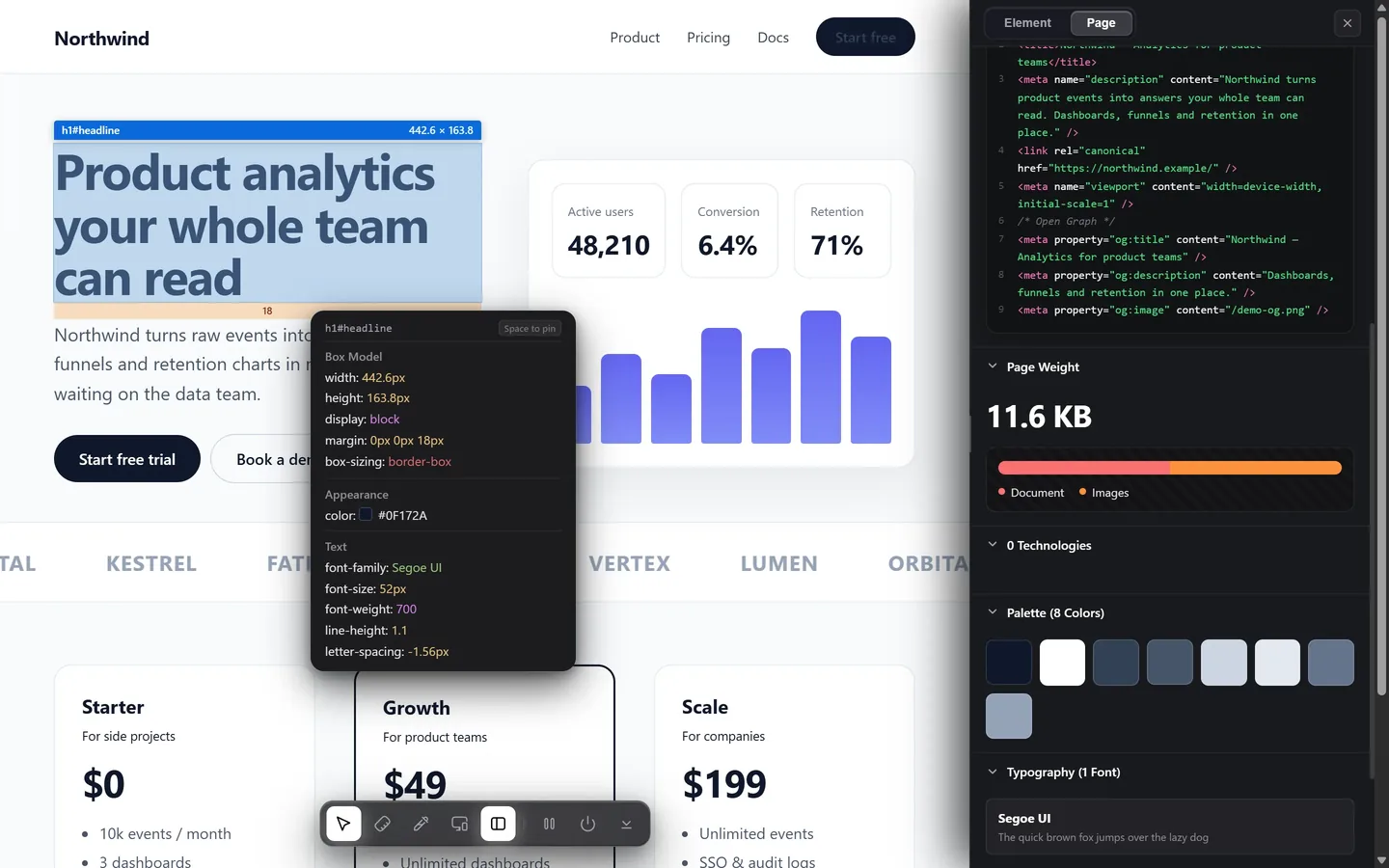
The fastest route. A font inspector extension reads the rendered element under your cursor and shows the family, weight, size, line height and letter spacing together, without you leaving the page or opening a panel.
This is what Design Toolkit does with Alt+R: hover any text and the readout gives you the family that actually rendered, the weight as a number, the size in pixels, the line height as a ratio and the tracking. Click, and it stays pinned so you can compare two headings side by side.
Any of the font inspectors in the Chrome Web Store will get you the family name. What separates them is how much of the rest of the type they report, and whether they tell you the rendered font or just repeat the CSS stack.

2. Read it in DevTools
No install, works in every desktop browser:
Open the element
Right-click the text and choose Inspect. Chrome, Edge, Firefox and Safari all have this, though Safari needs the Develop menu turned on first.
Go to Computed, then scroll
In the Computed tab, scroll past the property list to the very bottom. Chrome shows a Rendered Fonts section naming the family that was painted and how many glyphs came from it.
Read the rest of the type while you are there
The same tab has font-size, font-weight, line-height and letter-spacing as resolved values — the numbers the browser used, not the ones the stylesheet asked for.
3. List every font on the page from the console
Hovering answers one element. When you want the whole page's typography — how many families it really uses, at what weights — one line in the console is quicker:
[...new Set([...document.querySelectorAll('*')]
  .map(el => getComputedStyle(el).fontFamily))]
  .sort()
That returns every distinct font stack in use. Swap fontFamily for fontWeight or fontSize and you get the same view of the weights and sizes a page is built on, which is usually a much shorter list than people expect.
4. Check what the page downloaded
The most literal answer: look at the font file itself.
Open DevTools, go to Network, filter by Font, and reload. You will see the .woff2 files the page fetched. The filenames usually name the family outright, and the domain tells you something useful about licensing: a file from fonts.gstatic.com is a Google font you can use freely, while one served from the company's own domain is usually licensed to them alone.
What the font name alone doesn't tell you
Knowing a page uses Inter gets you maybe half of what you are looking at. The rest is in the numbers:
- Weight. Inter at 600 and Inter at 400 read as different typefaces at a glance. Read the number, not "it looks bold".
- Size and line height. A heading at 44px with a line height of 1.15 sets completely differently from the same heading at 1.5.
- Letter spacing. Large headings are usually tracked in — often
-0.02emor tighter. Leave it out and your version reads loose and unfinished. - Variable axes. A variable font can be set to a width or optical size that no static weight will reproduce. Look for
font-variation-settings. - Numerals.
font-variant-numeric: tabular-numschanges the shape of every digit — noticeable in pricing tables and dashboards.
When you can't use the font you found
This is the common ending: you identify the font and it turns out to be licensed to that company. The professional answer is not to find "something similar looking" by eye — it is to match the measurements that make two sans-serifs read alike:
- x-height ratio — the height of a lowercase x divided by the font size. This is the single biggest driver of whether two fonts feel the same at a glance, and CSS has a property for it:
font-size-adjust. - Cap height ratio — the same for capitals.
- Set width — how wide a fixed string renders. Once the x-height matches, letter spacing closes whatever width is left over.
Design Toolkit measures all three on the page where the font really is loaded, and hands them to you — or straight to your AI coding agent — so a substitute can be tuned to the original rather than guessed at. That is the part that turns "close enough" into a match.
Read a page's type without opening DevTools
Hover any text for its family, weight, size, line height and tracking. Free for 7 days, then a one-time payment.
Add to Chrome — free trialCommon questions
Can I identify a font from an image or a screenshot?
Not with a browser tool. Everything here reads the live CSS of rendered text, so text baked into an image is invisible to it. For an image you need a visual matcher such as WhatTheFont or Font Squirrel's Matcherator, which guesses from letter shapes and is often approximate.
Why does DevTools show a different font from the one in the CSS?
The CSS names a stack, not a font. If the first family fails to load, or does not cover the characters on screen, the browser falls back to the next one. The Computed tab's Rendered Fonts section shows what was actually painted — that is the answer you want.
Can I use the font I found on my own site?
Only if it is licensed for that. A font served from Google Fonts can be used freely; one served from the site's own domain is usually licensed to that company alone. If you cannot license it, match its measurements with a family you can load, as above.
Does this work on text inside an iframe?
An iframe is a separate document. DevTools can inspect it by switching context, but most extensions stop at the top page. Open the iframe's URL directly and inspect it there.