The 6 best CSS inspector Chrome extensions
Every one of these puts an element's styles in front of you without opening DevTools. What separates them is how much of the design they actually read — and that is where the list stops being interchangeable.
CSS Peeper if you want colours, fonts and assets in a clean panel. VisBug if you want to edit the page as well as read it. CSSViewer if you want the smallest possible hover readout. Design Toolkit if you need the parts the others leave out — spacing between elements, hover and focus states, and animation timings.
How to judge a CSS inspector
They all show you a font and a colour. The differences that matter in practice:
- Computed or source? A source rule can say
var(--brand). A computed value says#ff5c00. You usually want the second, and sometimes both. - Does it measure between elements? Reading one box is easy. The gap between two of them is the question you actually have.
- Does it read states? Hover, focus and active are half of an interface, and a static readout never shows them.
- Does it read motion? Durations, easing curves and keyframes. Almost nothing does this.
- What comes out? A panel you read, or code you can paste.
| Tool | Measures gaps | Hover states | Motion | Code export | Price |
|---|---|---|---|---|---|
| Design Toolkit | Yes | Yes | Yes | CSS, Tailwind, style object | 7-day trial, then one-time |
| CSS Peeper | No | No | No | Colours, fonts, assets | Free |
| VisBug | Yes | No | No | Edits live, no export | Free, open source |
| CSSViewer | No | No | No | No | Free |
| Chrome DevTools | Manual | Force state | Animations panel | Copy rule | Free, built in |
| Screen Ruler | Yes | Partly | No | CSS, Tailwind | Free tier, paid tiers |
1. Design Toolkit
Design Toolkit Ours
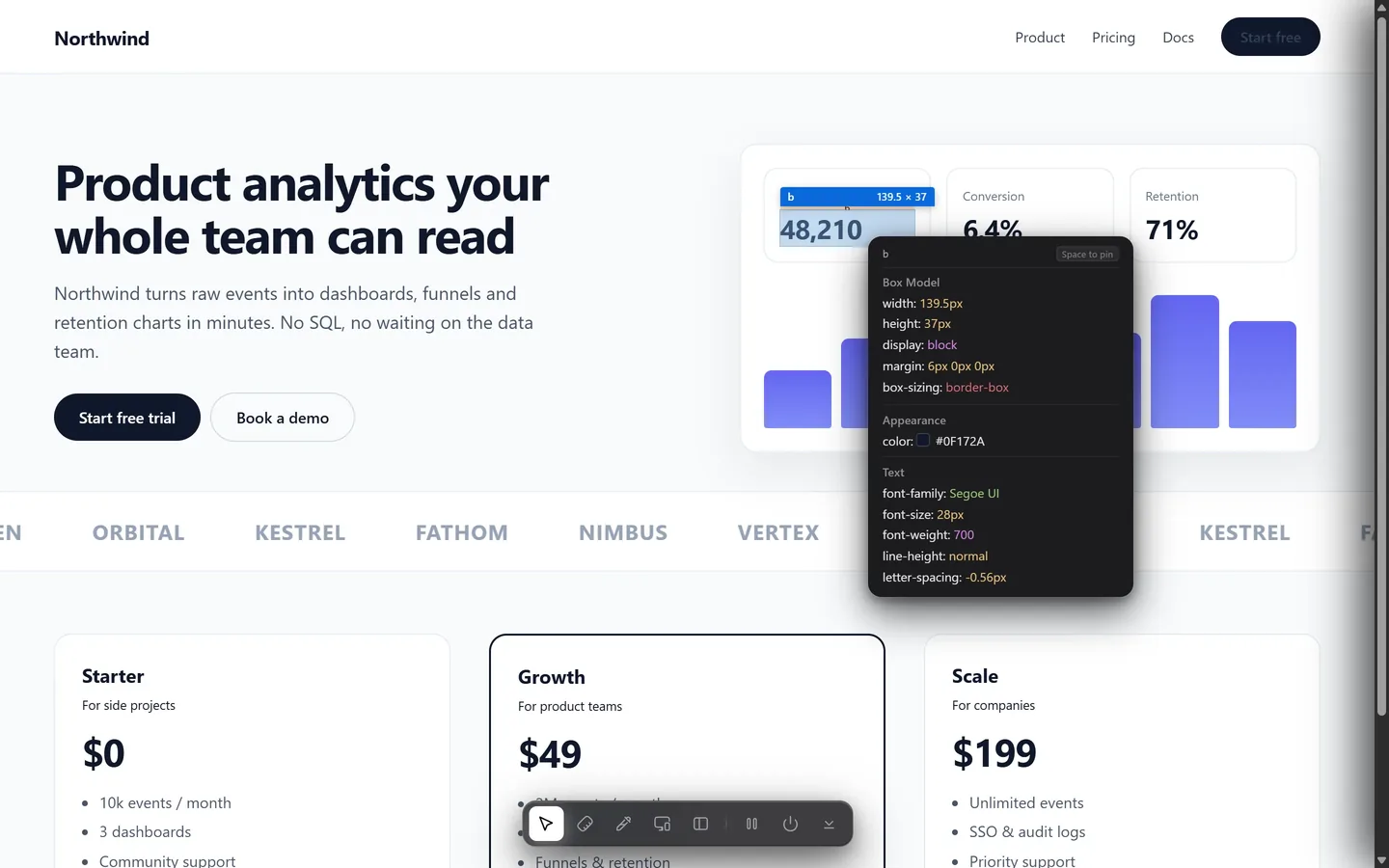
Built for the question a designer actually asks, which is rarely "what is this element's padding" and usually "why does mine not look like that". It reads the box model, the layout, the type with its real rendered font, the colours with their contrast ratio, and — the part that separates it — the distance between any two elements, the hover and focus changes with the timing that carries them, and the animations, including ones created in JavaScript, with their keyframes.
- Hover anything for size, spacing, type, colour and contrast; click to pin and compare two elements
- Click two elements for the exact gap, the way you would in Figma
- Reads hover, focus-visible and active states, with the transition that runs them
- Reads motion: durations, easing curves, keyframes, and JavaScript animations
- Exports as CSS, Tailwind classes or a React style object
- Sends a measured capture straight to an AI coding agent, or copies it for ChatGPT
- Responsive preview, page audit, colour picker, asset downloads
Weak spot: it is not free after the trial, and it is deliberately not a live editor — it reads and measures, it does not let you drag things around the page.
2. CSS Peeper
CSS Peeper
The designer-first inspector, and the one most people meet first. It shows a clean panel of the styles that matter to a designer — colours, typography, border radius — instead of the cascade mess, and it collects the page's colour palette and downloadable assets in one place.
- Clean panel: font, size, colour, radius, without the code
- Page-wide colour palette and asset list
- Genuinely free
Weak spot: it reads one element at a time and nothing about relationships between them — no distance measurement, no states, no motion.
3. VisBug
VisBug
Different in kind from the rest: an open-source design-tools overlay from Google that lets you edit a live page the way you would edit a design file. Move padding, change text, swap colours, drag things around — all on top of someone else's site, all thrown away on refresh.
- Edit a live page visually: spacing, type, colour, position
- Inspect and measure while you are in there
- Free and open source
Weak spot: it is a sandbox, not a reader. There is no export, and nothing survives a reload. Reach for it to try an idea, not to record one.
4. CSSViewer
CSSViewer
The oldest idea on this list and still the simplest: click the toolbar icon, hover anything, read its CSS properties in a small floating box. No panel, no settings, no account.
- Instant hover readout of the main CSS properties
- Tiny and fast
Weak spot: it shows properties, not answers. No measurement, no copy, no states, and a readout that has not really changed in a decade.
5. Chrome DevTools
Chrome DevTools
Worth naming, because for some jobs nothing beats it. DevTools is the only tool here that tells you why a value is what it is: which rule won, what it overrode, where the specificity went wrong. It can force :hover on an element, and its Animations panel can slow a transition down and scrub through it.
- The full cascade, with the rules that lost
- Force element state to inspect hover and focus
- Animations panel for slowing down and inspecting motion
- Computed tab shows resolved values including the rendered font
Weak spot: it is built for debugging, not for reading a design. Half your screen goes to a panel, the answer is spread across three tabs, and measuring the distance between two elements means doing arithmetic on two bounding boxes.
6. Screen Ruler
Screen Ruler
The closest thing to a direct competitor for us, and a capable one. It measures, inspects, reads CSS, and its paid tier adds live editing and an MCP bridge for coding agents.
- Measurement and element inspection
- CSS and Tailwind output
- Live editing and an agent bridge on the paid tiers
Weak spot: no animation inspection — durations, easing and keyframes are not part of what it reads. Its Chrome Web Store listing also discloses collecting personally identifiable information, user activity and website content, which is worth reading before you install anything that sees every page you visit.
Which one to install
- You want colours, fonts and assets, free — CSS Peeper.
- You want to try a change on a live page — VisBug.
- You want the smallest possible readout — CSSViewer.
- You are debugging the cascade — DevTools. Nothing else comes close.
- You are rebuilding something and need it to match — spacing between elements, hover states, motion, and a capture you can hand to an AI: Design Toolkit.
Read a design, not a stylesheet
Size, spacing, type, colour, contrast, states and motion — in one readout, on any page. Free for 7 days.
Add to Chrome — free trialCommon questions
Why use an extension when DevTools is already built in?
DevTools is a debugging tool: it answers one property at a time and takes half your screen. An inspector extension answers the design question — size, spacing, type, colour, hover — in one readout while you stay on the page. Use DevTools when you need to know why a rule won; use an extension when you need to read a design.
Do these extensions work on any website?
On ordinary pages, yes. All of them are blocked on browser pages such as the Chrome Web Store and settings, because Chrome does not allow extensions to run there. A stylesheet served from another domain without CORS headers cannot be read as source by any of them either, though computed values still work.
Which one gives me code I can paste?
CSS Peeper and Design Toolkit both export. What differs is the scope: CSS Peeper is built around colours, fonts and assets; Design Toolkit exports the box model, layout, type and effects as CSS, Tailwind or a style object.
Can any of them read an animation?
Most read static styles only. DevTools has an Animations panel for inspecting one by hand. Reading motion properly means reporting the transition properties, durations and easing curves, the animations that are running including ones created in JavaScript, and the keyframes behind them — a different job from reading a computed style.