
How to measure pixels on a website
A page ruler tells you where things are. Hovering tells you how big they are. Together they answer almost every "how many pixels is that?".
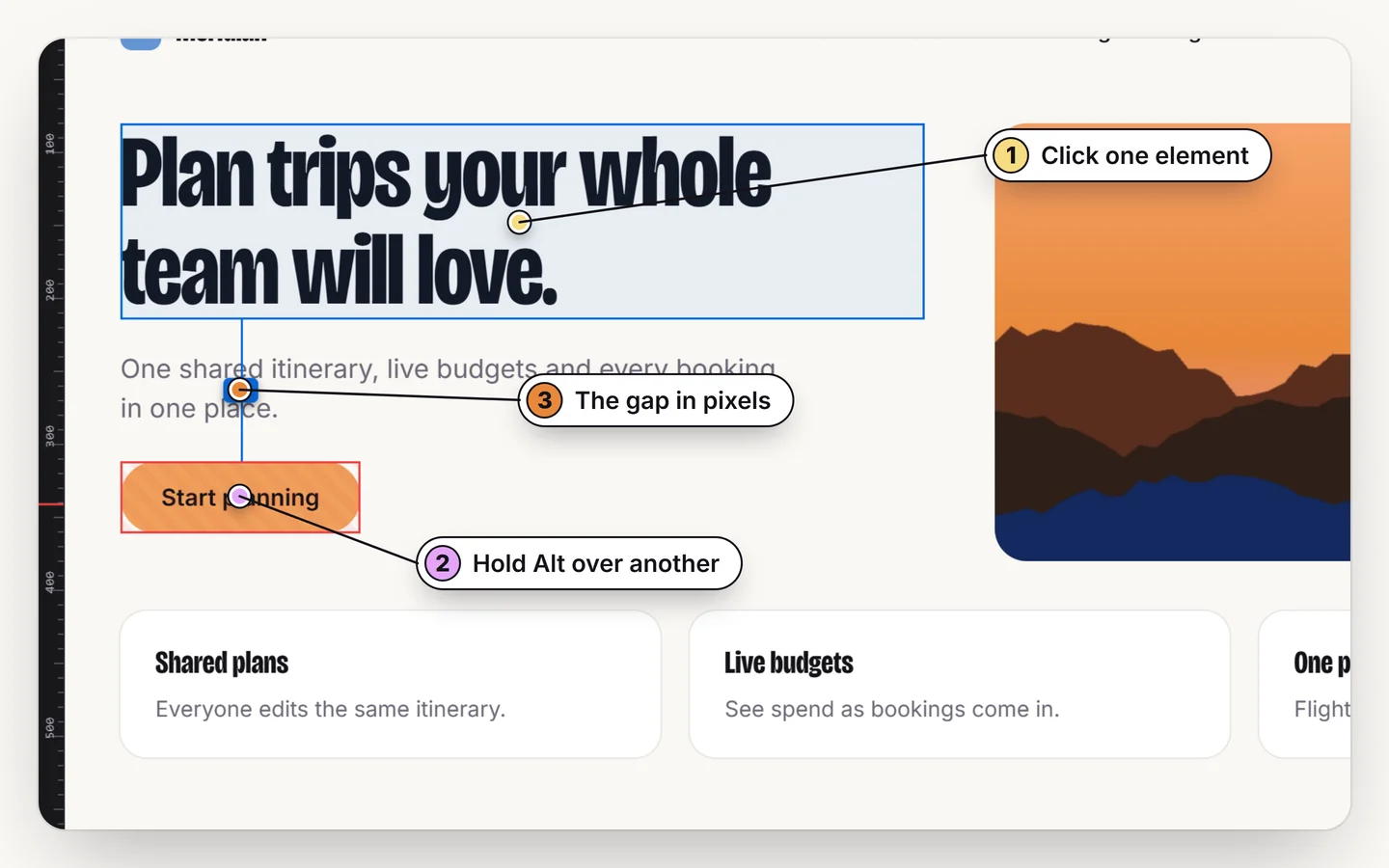
Turn on a measuring extension (in Design Toolkit, Alt + R, then M). Hover an element for its width and height in pixels, select one and hover another for the exact gap between them, and use the page rulers and the live crosshair to read positions and line things up.
Which measurement do you need?
| You want | Use |
|---|---|
| The size of one element | Hover it and read the width and height |
| The gap between two elements | Select one, hover the other (measure mode) |
| A position or an alignment | The page rulers and the live crosshair |
| The padding and margin around one element | The box model drawn on the page |
How to measure pixels on any page
1. Turn on measure mode
Press Alt + R to turn the toolkit on, then M for measuring.
2. Hover for sizes
Move over any element: its size shows in pixels, with the box model drawn in place.
3. Select one, hover another for the gap
Click an element, then hover a second one. The exact distance appears between them.
4. Use the rulers and crosshair
The page rulers and a crosshair that follows the cursor help you read a position and check that two things line up.
A note on zoom and device pixels
Pixels here are CSS pixels, the unit a stylesheet uses, so a 24px gap is 24px at 100% zoom. If the browser is zoomed to 125%, the page is laid out in fewer, larger CSS pixels, and some tools report values that look off. Reset zoom to 100% before you compare numbers with a design file. On a high-density screen one CSS pixel is several physical pixels; that changes how sharp it looks, not what it measures.
Why a measurement might not match the design
- Margin collapsing. Two stacked margins can merge into the larger one, so the gap is smaller than the sum. See how to measure the distance between elements.
- Fluid sizes. A width set in percent or
clamp()changes with the window. Measure at the width you design for. - Transforms. A scaled or moved element can paint somewhere other than its box.
From a measurement to a design
Collect four or five gaps and the spacing scale appears (often 4, 8, 16, 24, 32). Put them with the colors and fonts and you have the start of a design system: how to extract design tokens from a website.
Measure anything in pixels
Sizes, gaps and positions on any page. Free for 7 days.
Add to ChromeNo accountRuns locally14-day refund
Common questions
How do I measure pixels on a website?
Turn on Design Toolkit (Alt + R), press M, and hover an element for its width and height. Select one element and hover another to read the exact gap between them.
Is there a page ruler for Chrome?
Yes. Design Toolkit includes page rulers along the edges and a live crosshair, together with element sizes and the gap between two elements.
Are the numbers in CSS pixels?
Yes. They are CSS pixels, the unit the page's stylesheet uses, so reset browser zoom to 100% before comparing them with a design file.
Why does the gap differ from the margin in the CSS?
Margins can collapse, and spacing can also come from padding, a flex or grid gap, or line height. The measurement shows the space actually painted between the two elements.