
How to screenshot a website on every device
One page, three or four screens, and a design review waiting. Capture them all in one pass instead of resizing a window and starting again.
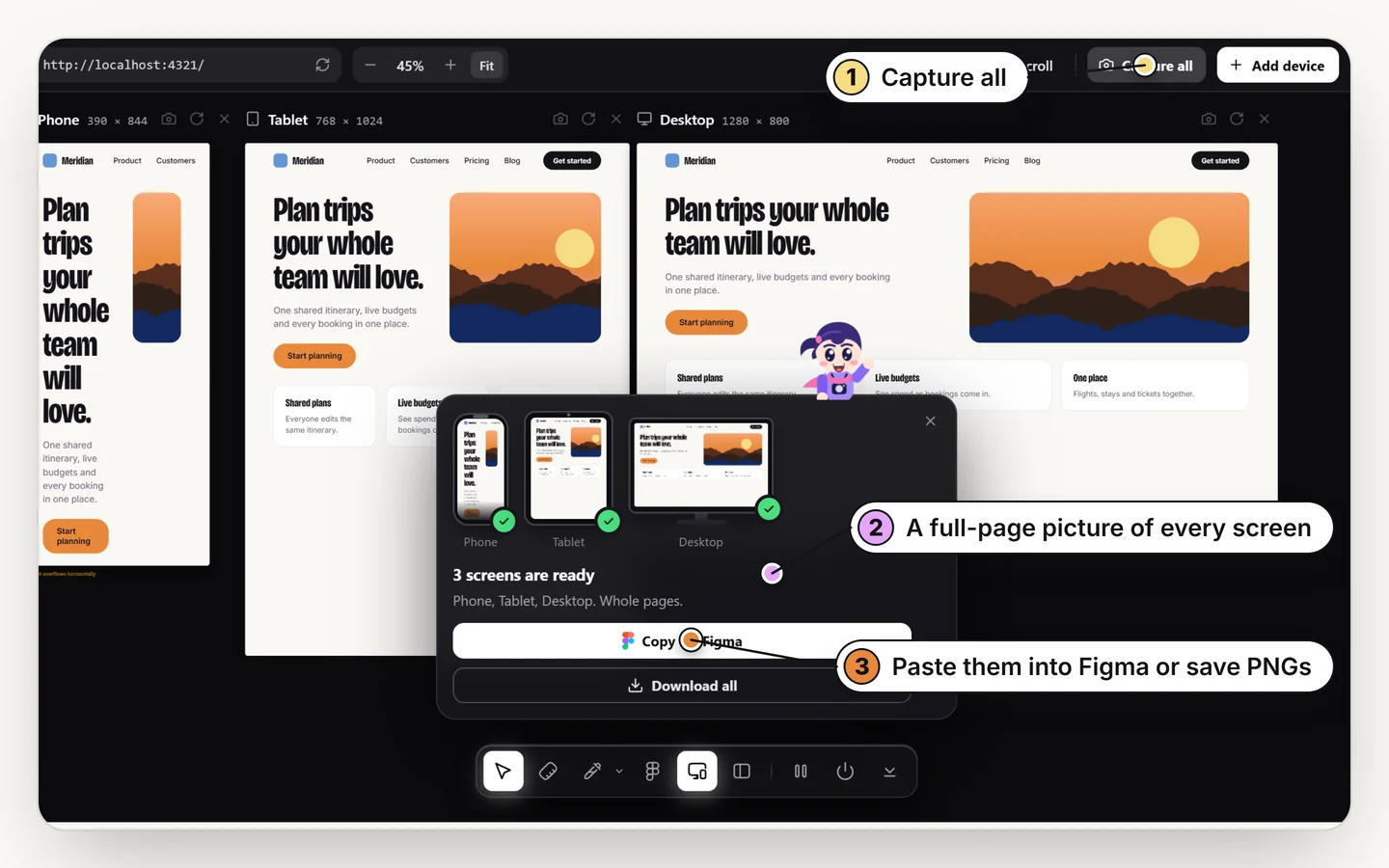
Open responsive mode to see the page on several devices side by side, then use Capture all to take a full-page screenshot of each screen in one go. Download the captures or copy them straight into Figma.
Why capturing every device is slow
The manual way is to resize the window, take a screenshot, resize again and repeat, then lose track of which image is which width. A full page needs scrolling captures on top of that. It is easy to skip a size, and the skipped size is the one that breaks.
How to capture every screen at once
1. Open responsive mode
Press R with Design Toolkit on. Phone, tablet and desktop appear side by side. Search 20+ devices or type your own size.
2. Scroll and check
Rotate, zoom and scroll the screens together to see how the layout behaves.
3. Capture
Use the camera on one screen, or Capture all for every screen. Each capture is the full page, not just what is visible.
4. Hand it over
Download the captures, or copy them into Figma to review beside your design.
When this saves the most time
- Design review. Show a client all three layouts in one image set.
- Bug reports. Attach the exact screen where the layout breaks.
- Portfolio and case studies. Capture finished work on real device sizes.
- Competitor research. Compare how other sites handle the same breakpoints.
Tips for cleaner captures
- Let lazy-loaded images finish before you capture.
- Dismiss cookie banners and chat widgets first.
- Capture the sizes your users actually have; check your analytics for the top three.
For the testing side, see how to test responsive design.
Capture every screen in one pass
Phone, tablet and desktop, full page. Free for 7 days.
Add to ChromeNo accountRuns locally14-day refund
Common questions
How do I take a full-page screenshot on a phone size?
Open responsive mode, choose a phone, and use the camera on that screen. It captures the whole page, not just the visible part.
Can I capture several devices at once?
Yes. Capture all takes a full-page capture of every screen in responsive mode.
Can I paste the screenshots into Figma?
Yes. Copy the captures for Figma, then paste them on the canvas.
Do I need real devices?
No. Responsive mode uses the device sizes. Use real devices for touch behavior and performance.
How do I download all the screenshots at once?
Press Capture all in responsive mode, then Download all on the card that appears.
Can I get editable layers instead of screenshots?
Yes. Use Copy to Figma and pick Mobile or Tablet in its size menu to paste the page at that size as frames and text. See how to copy a website into Figma.