
How to Copy a Website Into Figma (Editable, No Plugin)
Turn a live page into something you can edit: frames you can move, text you can retype and spacing that holds, pasted straight onto the canvas.
Select a section (or the whole page) with a browser extension that supports it, copy it, then press Ctrl + V on the Figma canvas. You get real frames, text layers and auto layout, not a flat screenshot. With Design Toolkit there is no Figma plugin to install.
Why not just take a screenshot?
A screenshot is a picture. You can look at it, but you cannot change the headline, nudge a card or reuse the button. A pasted capture is built from layers: every block is a frame, every line of text is a text layer, and the spacing between things is stored as auto layout.
That difference decides what you can do next: restyle a competitor page for research, rebuild a client site in a design file, or start a redesign from the real thing instead of redrawing it by hand.
How to copy a website into Figma
1. Pick what to copy
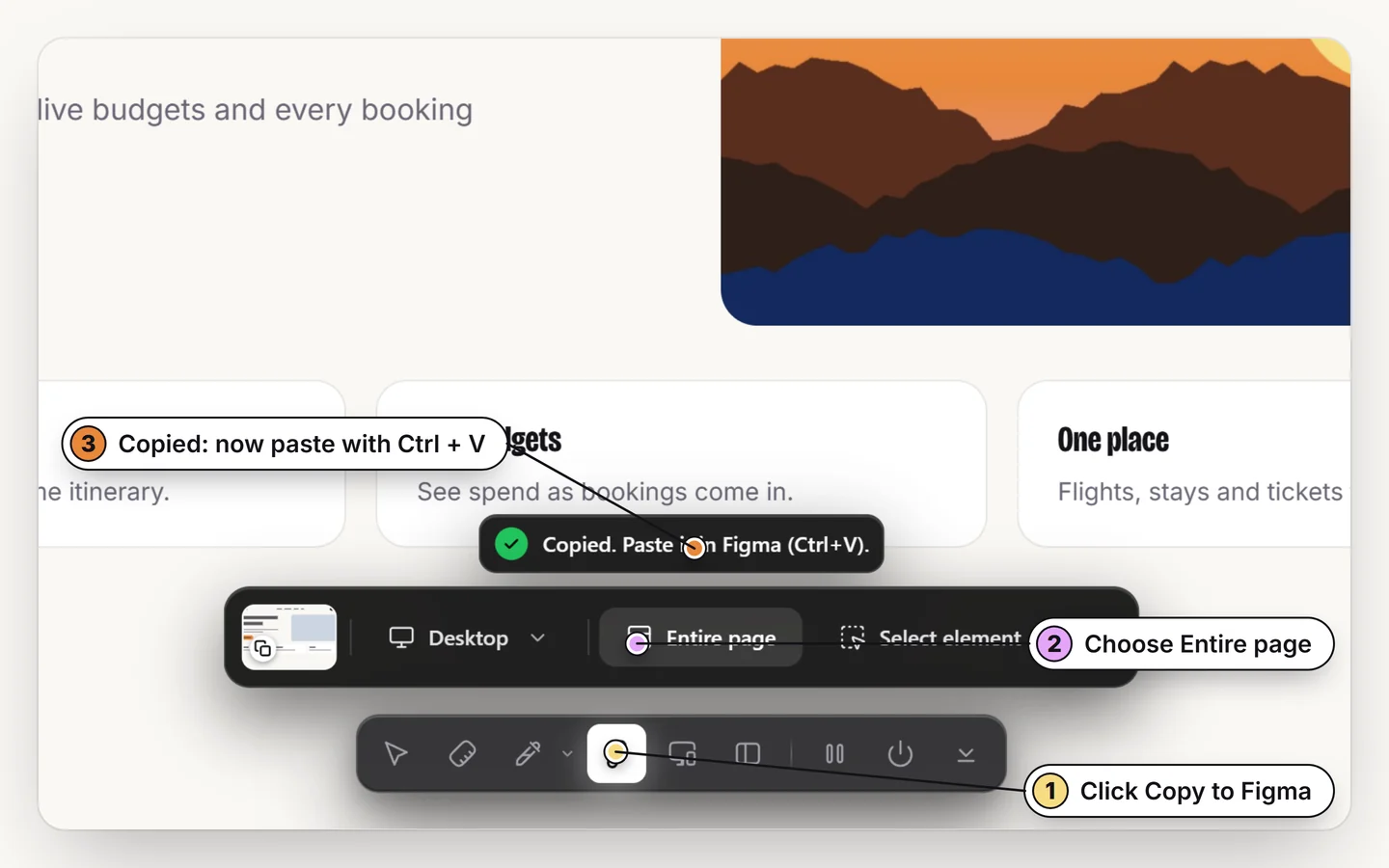
Turn Design Toolkit on with Alt + R and choose one section, or the whole page. A single section pastes faster and is easier to tidy.
2. Copy it
Use the Copy to Figma button. The capture is written to your clipboard; nothing is uploaded and no account is involved.
3. Paste in Figma
Click the Figma canvas and press Ctrl + V (⌘ + V on Mac). The layers appear, named and nested the way the page was built.
How to copy the mobile or tablet version of a website
Next to Entire page there is a size menu. Desktop copies the page as it is in your window. Tablet (820 × 1180) and Mobile (390 × 844) lay the page out at that width first and then copy it, so you paste the real responsive layout and not a shrunken desktop. Custom takes any width from 200 to 4000 pixels and any height from 200 to 8000, and Design Toolkit remembers the size you picked on that website.
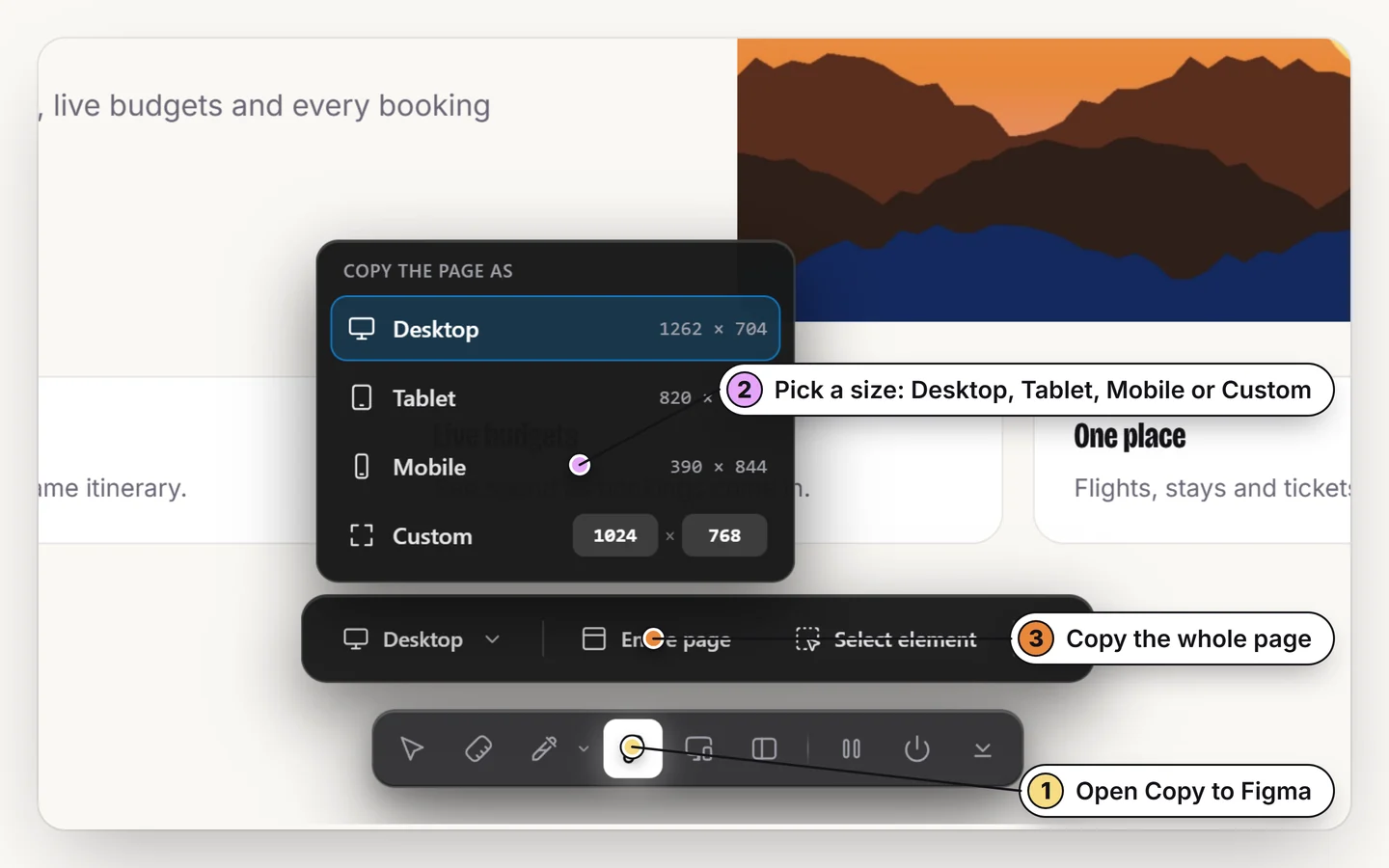
Copy the same page at three sizes and paste the three frames side by side to compare breakpoints, build the phone version of a competitor page, or give a developer the exact tablet layout. To copy only one block, choose Select element in the same tray and click it.
What arrives in Figma
- Frames for each block, with their sizes and background colors.
- Text layers you can edit, with the fonts, sizes and weights the page used.
- Auto layout where the page used rows, columns and gaps, so the spacing survives edits.
- Images as image fills, and simple icons as vectors.
Fonts are the one thing that can differ. If a font is licensed to the site and is not installed on your computer, Figma substitutes a similar one and shows its usual missing-font notice.
Four tips for a cleaner paste
- Start with one section. Hero, pricing and footer paste far more cleanly than a 30,000-pixel page.
- Capture at the width you want. Use responsive mode first if you need the mobile layout.
- Let the page finish loading. Content that animates in on scroll should be on screen before you copy.
- Install the fonts. If the page uses a Google font, installing it makes the paste match exactly.
What is fine to copy, and what is not
Studying a layout is normal design practice. Reusing someone else's logo, photography, copy or licensed fonts is not. Treat a capture as reference or as a starting point for your own work, and replace the brand-specific parts.
Copy any page into Figma
Paste real layers, not a screenshot. Free for 7 days, no plugin.
Add to ChromeNo accountRuns locally14-day refund
Common questions
Can I copy a website into Figma without a plugin?
Yes. Design Toolkit writes the capture to your clipboard in a format Figma understands, so you paste with Ctrl + V on the canvas. There is no Figma plugin to install.
Is the pasted result editable or a screenshot?
Editable. You get frames, text layers and auto layout. Images arrive as image fills.
Why does the text look different in Figma?
Figma can only use fonts installed on your computer or available from its own font library. If the site uses a licensed font you do not have, Figma substitutes another.
Can I copy a whole page or only a section?
Both. A single section pastes faster and is easier to clean up, so start there.
How do I convert a website or HTML to Figma?
Open the page in Chrome, turn on Design Toolkit, pick the whole page or one section and press Copy to Figma. Then click the Figma canvas and press Ctrl + V. The page is converted to frames, text layers and auto layout. You do not need the HTML file: it works on any page you can open.
Is it free?
Every tool is free for 7 days with no card. After that, lifetime access is a single $5 payment.
Can I copy the mobile version of a website into Figma?
Yes. Open the size menu next to Entire page, choose Mobile (390 × 844), then copy. The page is laid out at phone width before it is copied, so you get the real mobile layout. Tablet (820 × 1180) and a custom size work the same way.
Can I copy just one part of a page?
Yes. Choose Select element in the Copy to Figma tray and click the block you want. A hero, a pricing table or a footer is faster to paste and easier to tidy than a whole page.
What is the best way to copy a website to Figma for free?
Design Toolkit pastes a page as real frames, text and auto layout with Ctrl + V, with no Figma plugin. Every tool is free for 7 days with no card, then lifetime access is a single $5 payment.
Does it work on Arabic or Hebrew websites?
Yes. Right-to-left pages keep their text direction, alignment and fonts. See how to copy an Arabic or Hebrew website into Figma.